파이썬을 이용해서 개발을 하려다 보면

Python Version + Python Package 관리 때문에 마음 고생할 때가 종종 발생한다.


특히, 동시에 여러 프로젝트를 하려다보면

A 프로젝트는 Python 3.12 환경에 PyTorch 관련 패키지들이 필요하고

B 프로젝트는 Python 3.14 환경에 FastAPI 관련 패키지가 필요하는 등...

서로 다른 환경이 필요한 경우가 있다.


이런 것을 섞어서 하려다보면 많은 문제가 발생할 수 있기에

각 프로젝트마다 독립적인 개발환경을 제공해주기 위한 가장 아름다운 방법이

바로 파이썬 가상 환경이다.


▶ Virtual Environment

- 독립적인 파이썬 환경
  . 각 프로젝트에 필요한 파이썬 버전과 라이브러리 관리 가능
- 시스템(호스트) 파이썬과 분리
  . 시스템에 설치된 파이썬 환경을 변경하지 않고 개발 환경 구성
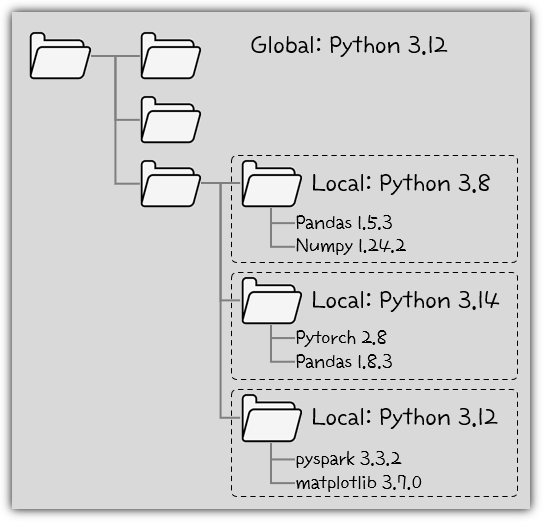
- 디렉토리 기반으로 가상 환경 구성


운영체제 전체에 기본적인 환경이 있겠지만,

내가 작업하는 디렉토리 + 하위 디렉토리만을 위한 독립적인 개발환경을 구성하는 것이다.


▶ Tools

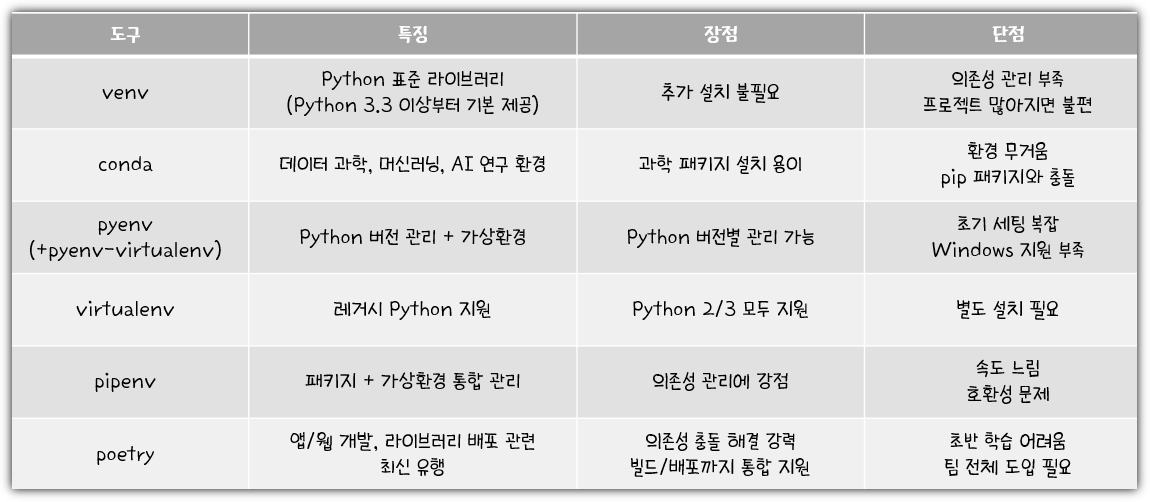
- Python 생태계는 패키지 관리, 버전 관리, 가상환경 관리, 빌드 도구 등이 파편화되어 혼란스럽다는 평가를 받고 있음
- 가상환경 관련 도구의 경우 패키지 관리 도구와 같이 pair로 구성되는 경우가 많고, Python 버전 관리는 명확치 않음


파이썬 패키지 관리 도구라던지 파이썬 버전 관리 도구는 정말 다양하게 있다.


물론 개발자들의 사랑을 받는 유명한 도구들이 있긴 하지만,

문제는 그 유명한 도구들이 여러개 존재하기 때문에 혼란스러운 것은 여전하다.


그러던 중, 이런 춘추전국 시대에 밝은 빛을 비춰주는 존재가 등장했으니 !!!

아름다운 "uv"라는 도구가 ... (다음 기회에~^^)

반응형


최근 특히 AI 관련한 개발 업무를 하게 되면서 Anaconda를 필요로 하는 경우가 많다.


https://www.anaconda.com/


그런데, 문제는 ... 라이선스 이슈가 있기에 회사에서 사용하려면 주의를 해야 한다.


"어?! 오픈소스 아니야?"


라고 생각하는 분들이 많을 것 같은데,

홈페이지 주소를 보면 알겠지만 Anaconda는 300명 이상의 임직원을 보유하고 있는 회사다.


하지만, 아주 선량하게도 오픈소스 커뮤니티도 유지하면서

오픈소스 프로젝트나 교육 기관 등에서 무료로 사용할 수 있도록 해주고 있다.


Pricing


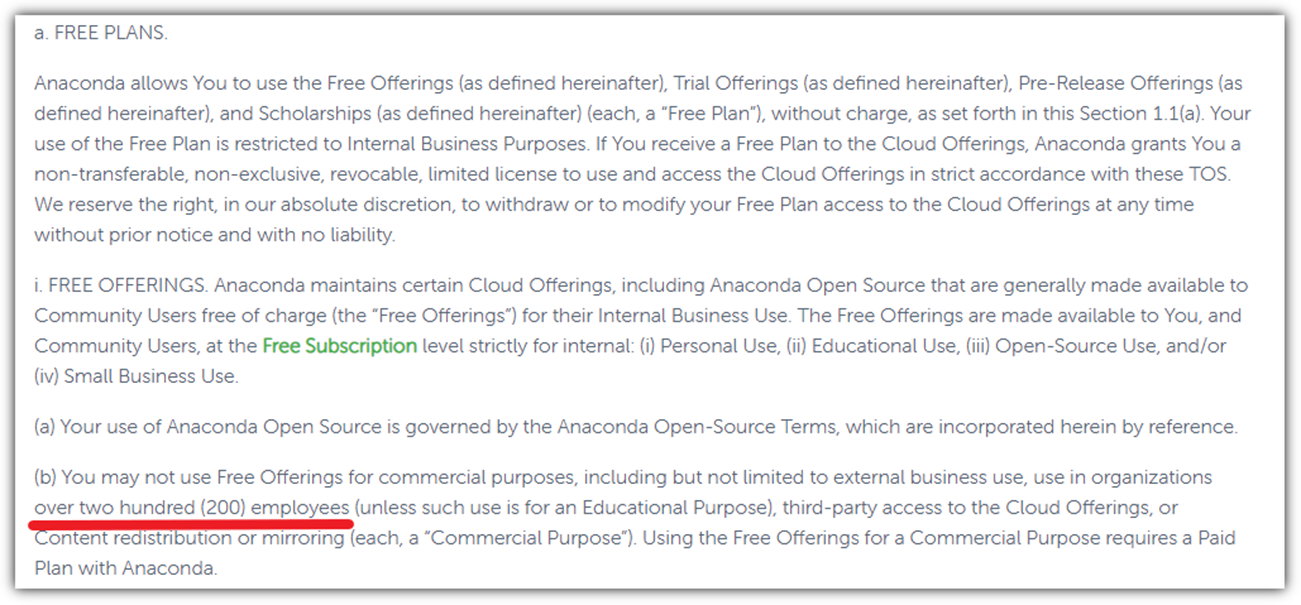
그런데, 문제는 저기 보이는 "Free" 요금제의 조건이다.


Free Plans


200명 이상의 임직원이 있는 곳이라면 .... 무료로 사용하면 안된다.

조금 더 자세히 살펴보자.


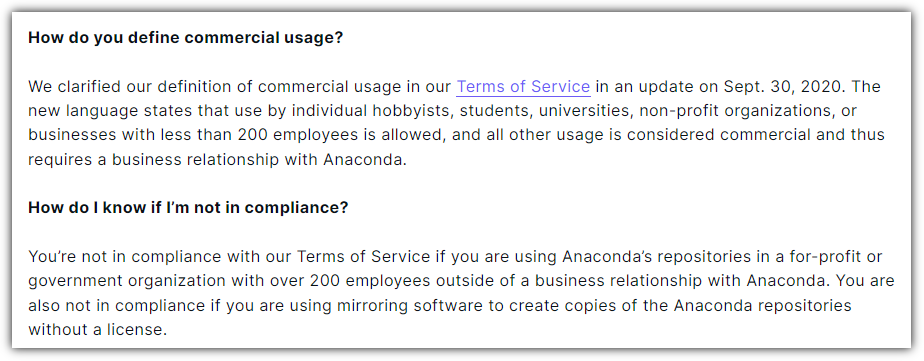
https://www.anaconda.com/blog/anaconda-commercial-edition-faq


2020년도에 (아마도 먹고 살기 위해) 서비스 약관을 변경했다.

200명 이상 규모의 회사에서 사용하기 위해서는 Enterprise Edition을 사용해야 한다.


그런데, 더 자세히 살펴보기 바란다.


"Anaconda vs. Anaconda's repositories"


Anaconda를 사용하는 것이 문제가 아니라

Anaconda의 저장소를 사용하는 것이 문제란다.


어!? 그러면 Anaconda' s repositories를 사용하지 않으면 되는 것 아닌가?!


https://www.anaconda.com/about-us


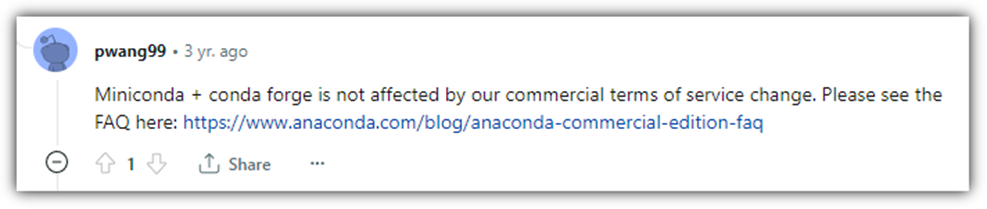
CEO이자 창립자인 피터 왕 형님(?)이 reddit에서 직접 그냥 대놓고 방법을 알려주셨다.


https://www.reddit.com/r/Python/comments/iqsk3y/comment/g4xuabr/


Miniconda + conda-forge 조합으로 사용하면

Anaconda의 commercial 약관에 영향을 받지 않는다.


결론 !!!

200명 이상 임직원을 보유하고 있는 회사에서는 Miniconda + conda-forge 조합으로 설치해서 사용하면 된다.


▶ Miniconda

쓸데 없는 패키지 설치 없이 깔끔하게 설치되는 가벼운 conda 이다.


https://docs.conda.io/projects/miniconda/en/latest/


Ubuntu 환경에서 설치하는 과정을 살펴보겠다.

❯ mkdir -p ~/miniconda3

❯ wget https://repo.anaconda.com/miniconda/Miniconda3-latest-Linux-x86_64.sh -O ~/miniconda3/miniconda.sh
--2024-01-10 23:13:40--  https://repo.anaconda.com/miniconda/Miniconda3-latest-Linux-x86_64.sh
repo.anaconda.com (repo.anaconda.com) 해석 중... 104.16.130.3, 104.16.131.3, 2606:4700::6810:8203, ...
다음으로 연결 중: repo.anaconda.com (repo.anaconda.com)|104.16.130.3|:443... 연결했습니다.
HTTP 요청을 보냈습니다. 응답 기다리는 중... 200 OK
길이: 141613749 (135M) [text/x-sh]
저장 위치: `/home/chani22/miniconda3/miniconda.sh'

/home/chani22/miniconda3/miniconda.sh        100%[==============================>] 135.05M  57.3MB/s    / 2.4s     

2024-01-10 23:13:43 (57.3 MB/s) - `/home/chani22/miniconda3/miniconda.sh' 저장함 [141613749/141613749]


❯ bash ~/miniconda3/miniconda.sh -b -u -p ~/miniconda3
PREFIX=/home/chani22/miniconda3
Unpacking payload ...
                                                                                                               
Installing base environment...


Downloading and Extracting Packages:


Downloading and Extracting Packages:

Preparing transaction: done
Executing transaction: done
installation finished.

❯ rm -rf ~/miniconda3/miniconda.sh

❯ ~/miniconda3/bin/conda init zsh
no change     /home/chani22/miniconda3/condabin/conda
no change     /home/chani22/miniconda3/bin/conda
no change     /home/chani22/miniconda3/bin/conda-env
no change     /home/chani22/miniconda3/bin/activate
no change     /home/chani22/miniconda3/bin/deactivate
no change     /home/chani22/miniconda3/etc/profile.d/conda.sh
no change     /home/chani22/miniconda3/etc/fish/conf.d/conda.fish
no change     /home/chani22/miniconda3/shell/condabin/Conda.psm1
no change     /home/chani22/miniconda3/shell/condabin/conda-hook.ps1
no change     /home/chani22/miniconda3/lib/python3.11/site-packages/xontrib/conda.xsh
no change     /home/chani22/miniconda3/etc/profile.d/conda.csh
modified      /home/chani22/.zshrc

==> For changes to take effect, close and re-open your current shell. <==  


마지막의 init은 새로운 버전으로 업데이트하거나 했을 때 초기화 하는 것인데 그냥 첫 설치 때도 해봤다.

bash 쓰시는 분들은 뒤의 zsh 부분을 바꿔치기하면 된다.


▶ conda-forge

conda가 설치되면 기본적으로 등록되어 있는 channel은 "https://repo.anaconda.com/pkgs/" 이다.

저 저장소가 바로 문제가 되는 최종 사용자 라이선스 계약(EULA) 항목이 존재하는 곳이다.

- https://legal.anaconda.com/policies/en/?name=end-user-license-agreement#end-user-license-agreement


그러면 conda-forge는 무엇일까?


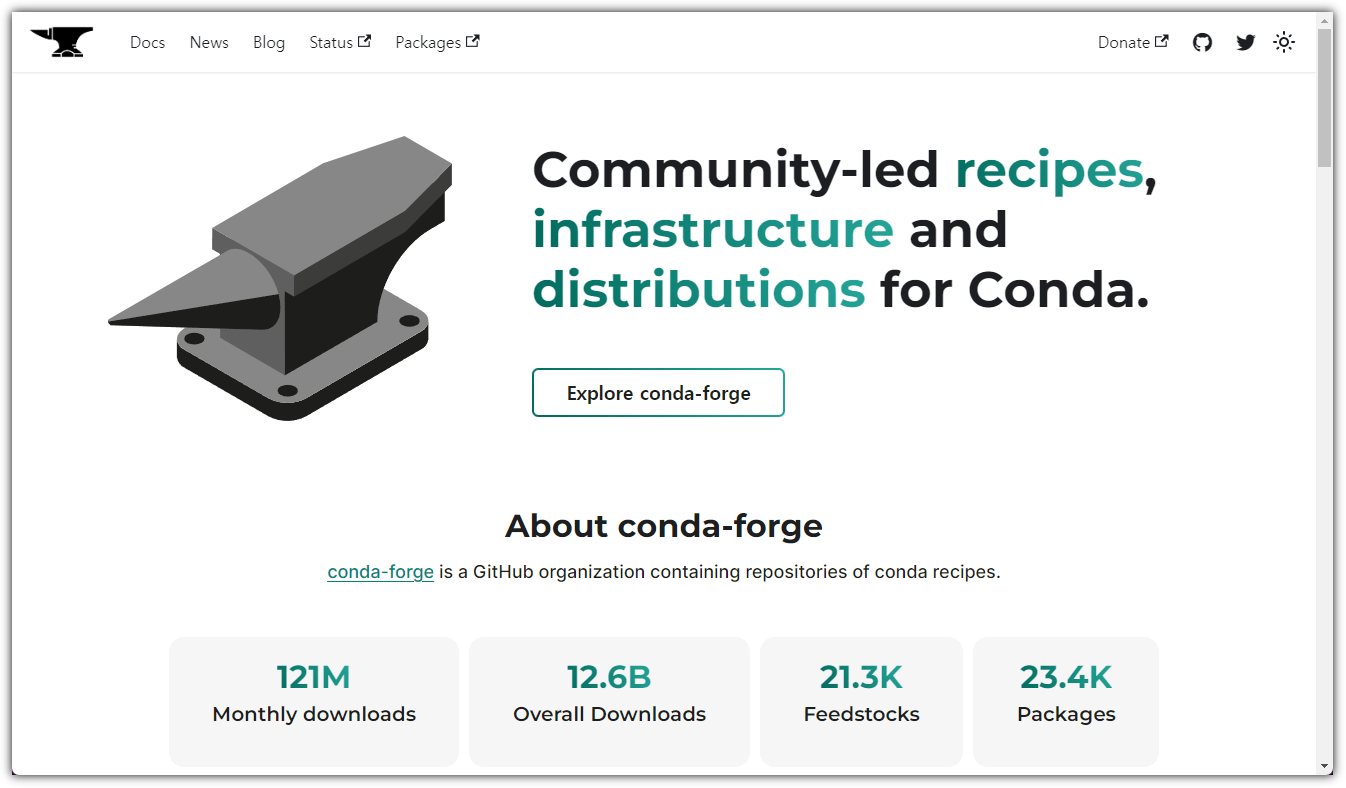
https://conda-forge.org/


community 리딩의 많은 기여자들의 활발한 참여로 운영되는 저장소이다.


정말 많은 패키지들이 등록되고 있고 그렇다보니

Anaconda의 공식 저장소보다 더 많은 패키지들이 존재하기에 commercial 이슈가 아니더라도

일부러 conda-forge를 저장소로 등록해서 사용자들도 많다고 한다.


conda에서는 이러한 저장소를 channel이라는 용어를 사용하고 있다.

❯ conda config --add channels conda-forge

❯ conda config --set channel_priority strict

❯ conda config --show channels
channels:
  - conda-forge
  - defaults


끝이다.


말이 좀 많았는데 실제로 손으로 직접 해야하는 것은 별 것 없다.

이걸로 compliance 이슈를 하나 해결할 수 있다 ^^


그러면, 실습을 하나 해보자 !!!


▶ Jupyter Notebook 실행하기


① 가상환경 생성하기

명령어 실행하는 위치는 어디든 무관하다.

❯ conda create -n python_39 python=3.9.15
Channels:
 - conda-forge
 - defaults
Platform: linux-64
Collecting package metadata (repodata.json): done
Solving environment: done

## Package Plan ##

  environment location: /home/chani22/miniconda3/envs/python_39

  added / updated specs:
    - python=3.9.15


The following packages will be downloaded:

    package                    |            build
    ---------------------------|-----------------
    _libgcc_mutex-0.1          |      conda_forge           3 KB  conda-forge
    _openmp_mutex-4.5          |            2_gnu          23 KB  conda-forge
    bzip2-1.0.8                |       hd590300_5         248 KB  conda-forge
    ca-certificates-2023.11.17 |       hbcca054_0         151 KB  conda-forge
    ld_impl_linux-64-2.40      |       h41732ed_0         688 KB  conda-forge
    libffi-3.4.2               |       h7f98852_5          57 KB  conda-forge
    libgcc-ng-13.2.0           |       h807b86a_3         755 KB  conda-forge
    libgomp-13.2.0             |       h807b86a_3         412 KB  conda-forge
    libnsl-2.0.1               |       hd590300_0          33 KB  conda-forge
    libsqlite-3.44.2           |       h2797004_0         826 KB  conda-forge
    libuuid-2.38.1             |       h0b41bf4_0          33 KB  conda-forge
    libzlib-1.2.13             |       hd590300_5          60 KB  conda-forge
    ncurses-6.4                |       h59595ed_2         864 KB  conda-forge
    openssl-3.2.0              |       hd590300_1         2.7 MB  conda-forge
    pip-23.3.2                 |     pyhd8ed1ab_0         1.3 MB  conda-forge
    python-3.9.15              |hba424b6_0_cpython        21.0 MB  conda-forge
    readline-8.2               |       h8228510_1         275 KB  conda-forge
    setuptools-69.0.3          |     pyhd8ed1ab_0         460 KB  conda-forge
    tk-8.6.13                  |noxft_h4845f30_101         3.2 MB  conda-forge
    tzdata-2023d               |       h0c530f3_0         117 KB  conda-forge
    wheel-0.42.0               |     pyhd8ed1ab_0          56 KB  conda-forge
    xz-5.2.6                   |       h166bdaf_0         409 KB  conda-forge
    ------------------------------------------------------------
                                           Total:        33.5 MB

The following NEW packages will be INSTALLED:

  _libgcc_mutex      conda-forge/linux-64::_libgcc_mutex-0.1-conda_forge 
  _openmp_mutex      conda-forge/linux-64::_openmp_mutex-4.5-2_gnu 
  bzip2              conda-forge/linux-64::bzip2-1.0.8-hd590300_5 
  ca-certificates    conda-forge/linux-64::ca-certificates-2023.11.17-hbcca054_0 
  ld_impl_linux-64   conda-forge/linux-64::ld_impl_linux-64-2.40-h41732ed_0 
  libffi             conda-forge/linux-64::libffi-3.4.2-h7f98852_5 
  libgcc-ng          conda-forge/linux-64::libgcc-ng-13.2.0-h807b86a_3 
  libgomp            conda-forge/linux-64::libgomp-13.2.0-h807b86a_3 
  libnsl             conda-forge/linux-64::libnsl-2.0.1-hd590300_0 
  libsqlite          conda-forge/linux-64::libsqlite-3.44.2-h2797004_0 
  libuuid            conda-forge/linux-64::libuuid-2.38.1-h0b41bf4_0 
  libzlib            conda-forge/linux-64::libzlib-1.2.13-hd590300_5 
  ncurses            conda-forge/linux-64::ncurses-6.4-h59595ed_2 
  openssl            conda-forge/linux-64::openssl-3.2.0-hd590300_1 
  pip                conda-forge/noarch::pip-23.3.2-pyhd8ed1ab_0 
  python             conda-forge/linux-64::python-3.9.15-hba424b6_0_cpython 
  readline           conda-forge/linux-64::readline-8.2-h8228510_1 
  setuptools         conda-forge/noarch::setuptools-69.0.3-pyhd8ed1ab_0 
  tk                 conda-forge/linux-64::tk-8.6.13-noxft_h4845f30_101 
  tzdata             conda-forge/noarch::tzdata-2023d-h0c530f3_0 
  wheel              conda-forge/noarch::wheel-0.42.0-pyhd8ed1ab_0 
  xz                 conda-forge/linux-64::xz-5.2.6-h166bdaf_0 


Proceed ([y]/n)? 


Downloading and Extracting Packages:
                                                                                                                                                                                   
Preparing transaction: done                                                                                                                                                        
Verifying transaction: done                                                                                                                                                        
Executing transaction: done                                                                                                                                                        
#                                                                                                                                                                                  
# To activate this environment, use                                                                                                                                                
#                                                                                                                                                                                  
#     $ conda activate python_39                                                                                                                                                   
#                                                                                                                                                                                  
# To deactivate an active environment, use                                                                                                                                         
#                                                                                                                                                                                  
#     $ conda deactivate                                                                                                                                                           


② 가상환경 활성화 하기

친절하게 앞에서 알려준대로 실행하면 된다.

❯ conda activate python_39


③ 패키지 설치

❯ pip install jupyter notebook ipykernel
Collecting jupyter
  Downloading jupyter-1.0.0-py2.py3-none-any.whl (2.7 kB)
Collecting notebook
  Downloading notebook-7.0.6-py3-none-any.whl.metadata (10 kB)
Collecting ipykernel
  Downloading ipykernel-6.28.0-py3-none-any.whl.metadata (6.0 kB)
Collecting qtconsole (from jupyter)
  Downloading qtconsole-5.5.1-py3-none-any.whl.metadata (5.1 kB)

...  


④ 가상환경과 Jupyter Notebook 연결

❯ python -m ipykernel install --user --name python_39 --display-name python_39
Installed kernelspec python_39 in /home/chani22/.local/share/jupyter/kernels/python_39


⑤ Jupyter Notebook 실행

❯ jupyter notebook
[W 2024-01-11 00:29:46.408 ServerApp] A `_jupyter_server_extension_points` function was not found in jupyter_lsp. Instead, a `_jupyter_server_extension_paths` function was found and will be used for now. This function name will be deprecated in future releases of Jupyter Server.
[W 2024-01-11 00:29:46.429 ServerApp] A `_jupyter_server_extension_points` function was not found in notebook_shim. Instead, a `_jupyter_server_extension_paths` function was found and will be used for now. This function name will be deprecated in future releases of Jupyter Server.
[I 2024-01-11 00:29:46.429 ServerApp] jupyter_lsp | extension was successfully linked.
[I 2024-01-11 00:29:46.432 ServerApp] jupyter_server_terminals | extension was successfully linked.
[I 2024-01-11 00:29:46.435 ServerApp] jupyterlab | extension was successfully linked.
[I 2024-01-11 00:29:46.439 ServerApp] notebook | extension was successfully linked.
[I 2024-01-11 00:29:46.440 ServerApp] Writing Jupyter server cookie secret to /home/chani22/.local/share/jupyter/runtime/jupyter_cookie_secret
[I 2024-01-11 00:29:46.604 ServerApp] notebook_shim | extension was successfully linked.
[I 2024-01-11 00:29:46.618 ServerApp] notebook_shim | extension was successfully loaded.
[I 2024-01-11 00:29:46.619 ServerApp] jupyter_lsp | extension was successfully loaded.
[I 2024-01-11 00:29:46.620 ServerApp] jupyter_server_terminals | extension was successfully loaded.
[I 2024-01-11 00:29:46.621 LabApp] JupyterLab extension loaded from /home/chani22/miniconda3/envs/python_39/lib/python3.9/site-packages/jupyterlab
[I 2024-01-11 00:29:46.621 LabApp] JupyterLab application directory is /home/chani22/miniconda3/envs/python_39/share/jupyter/lab
[I 2024-01-11 00:29:46.622 LabApp] Extension Manager is 'pypi'.
[I 2024-01-11 00:29:46.624 ServerApp] jupyterlab | extension was successfully loaded.
[I 2024-01-11 00:29:46.625 ServerApp] notebook | extension was successfully loaded.
[I 2024-01-11 00:29:46.626 ServerApp] Serving notebooks from local directory: /srv/workspace/python_39
[I 2024-01-11 00:29:46.626 ServerApp] Jupyter Server 2.12.3 is running at:
[I 2024-01-11 00:29:46.626 ServerApp] http://localhost:8888/tree?token=5ed486a3d676270879b3684991a11b4932c981c265dddef4
[I 2024-01-11 00:29:46.626 ServerApp]     http://127.0.0.1:8888/tree?token=5ed486a3d676270879b3684991a11b4932c981c265dddef4
[I 2024-01-11 00:29:46.626 ServerApp] Use Control-C to stop this server and shut down all kernels (twice to skip confirmation).
[C 2024-01-11 00:29:47.025 ServerApp] 
    
    To access the server, open this file in a browser:
        file:///home/chani22/.local/share/jupyter/runtime/jpserver-4428-open.html
    Or copy and paste one of these URLs:
        http://localhost:8888/tree?token=5ed486a3d676270879b3684991a11b4932c981c265dddef4
        http://127.0.0.1:8888/tree?token=5ed486a3d676270879b3684991a11b4932c981c265dddef4
[I 2024-01-11 00:29:47.041 ServerApp] Skipped non-installed server(s): bash-language-server, dockerfile-language-server-nodejs, javascript-typescript-langserver, jedi-language-server, julia-language-server, pyright, python-language-server, python-lsp-server, r-languageserver, sql-language-server, texlab, typescript-language-server, unified-language-server, vscode-css-languageserver-bin, vscode-html-languageserver-bin, vscode-json-languageserver-bin, yaml-language-server
 

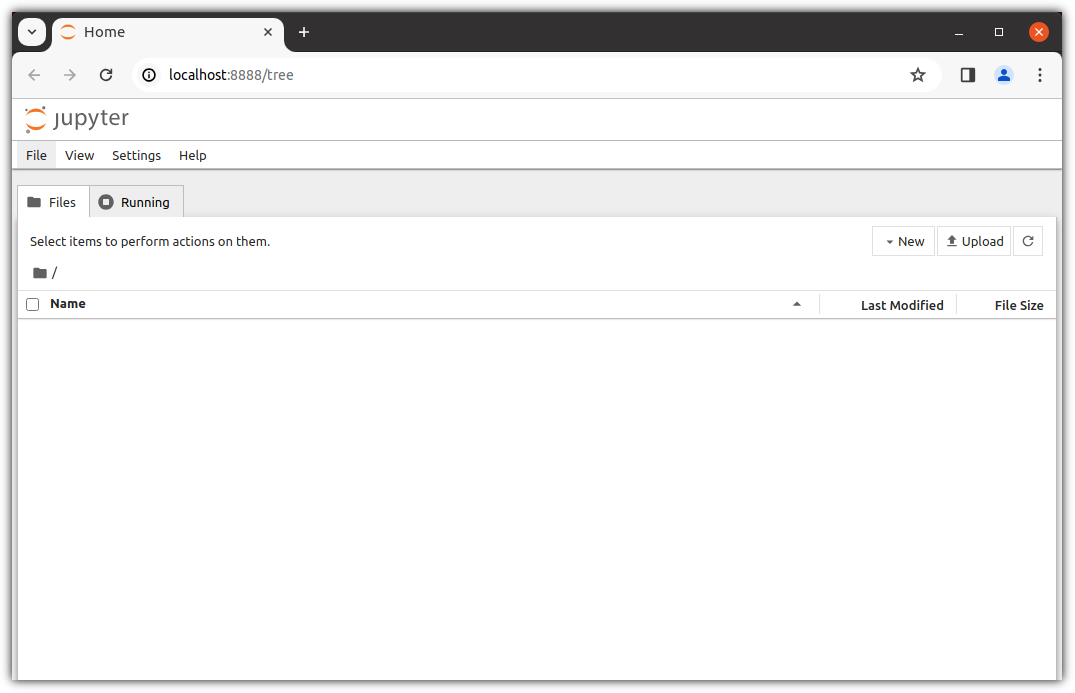
웹브라우저가 실행되면서 Jupyrt Notebook이 등장한다!!!

Jupyter Notebook


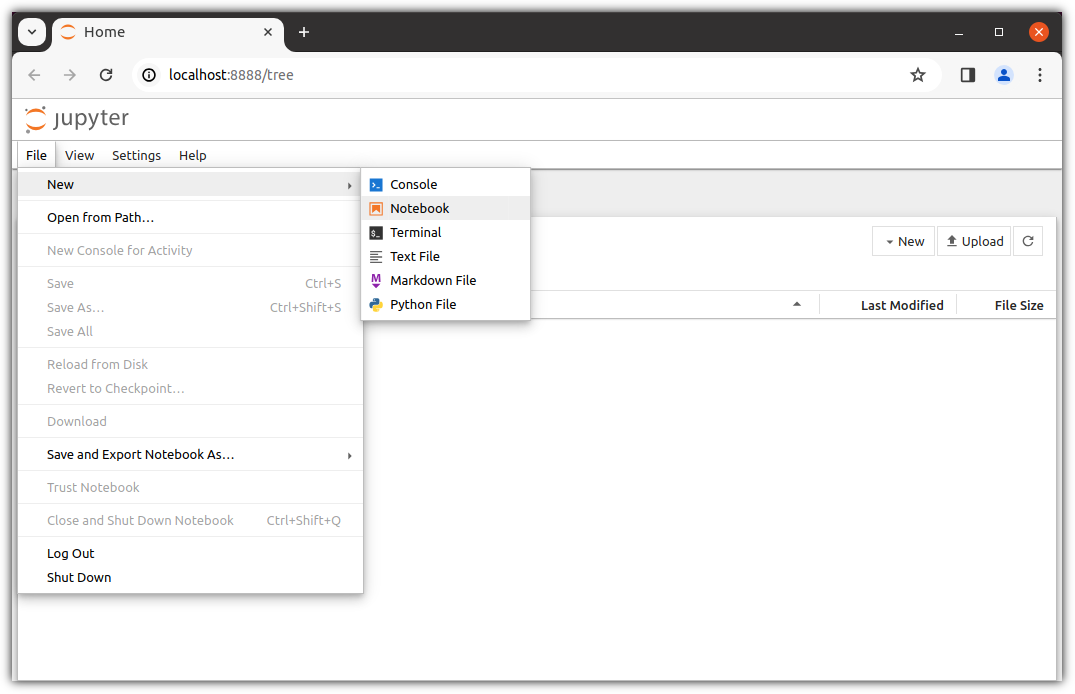
새로운 파일을 하나 생성해보자.

New - Notebook


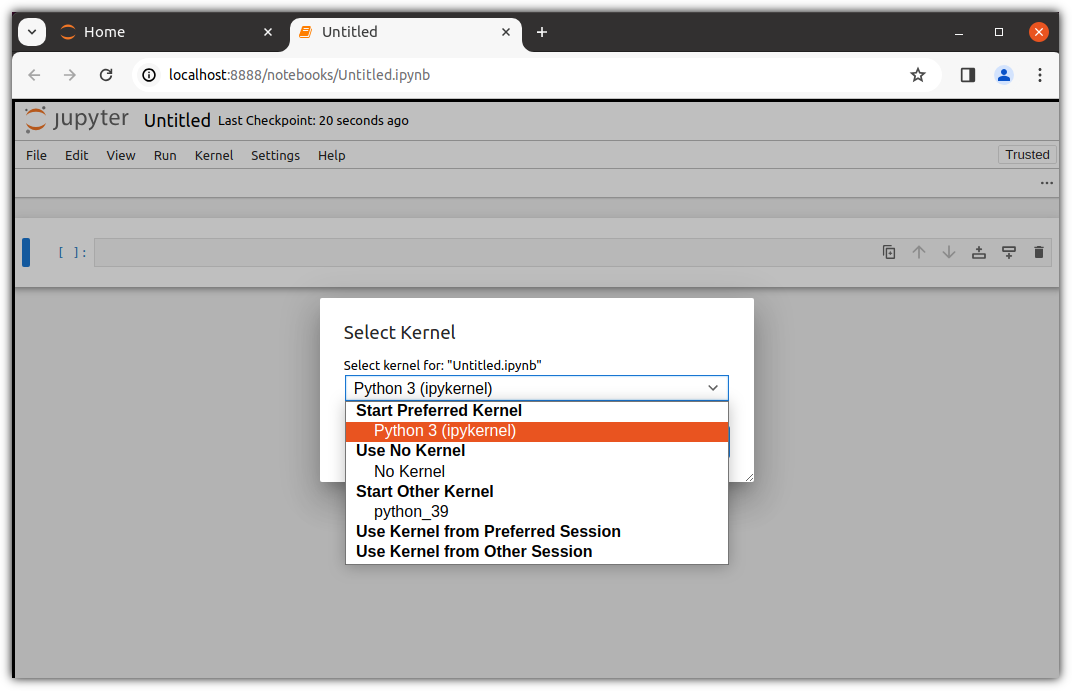
기본 kernel도 보이지만,

우리가 만들어낸 python_39 도 보인다.

Select Kernel


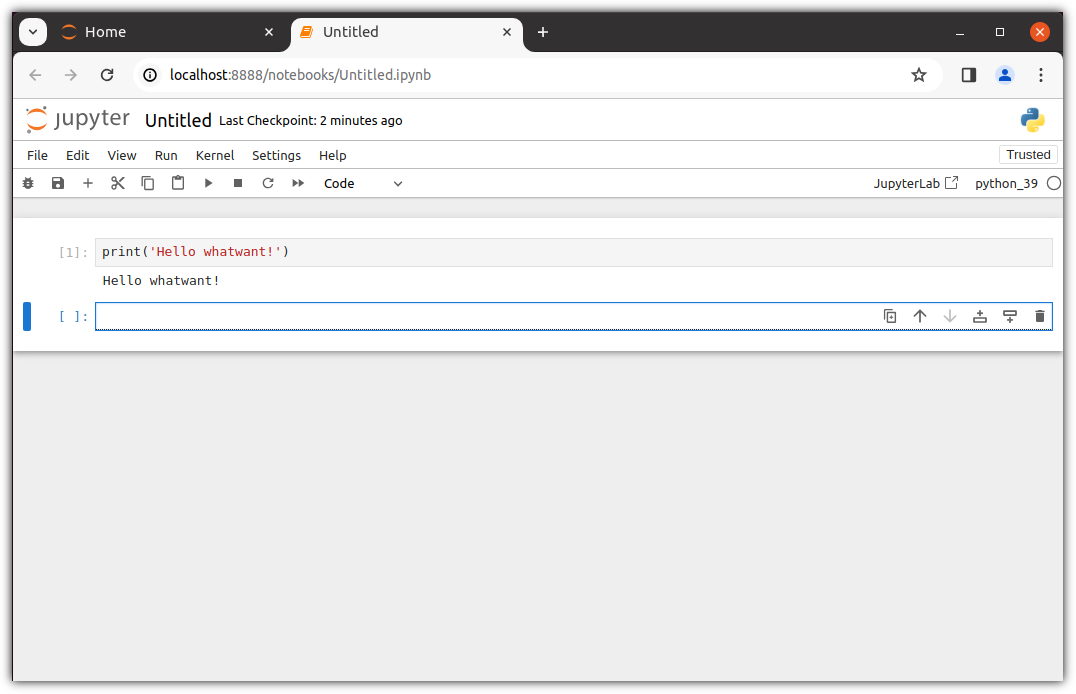
개발자라면 외쳐요. Hello ~ !!!

Hello


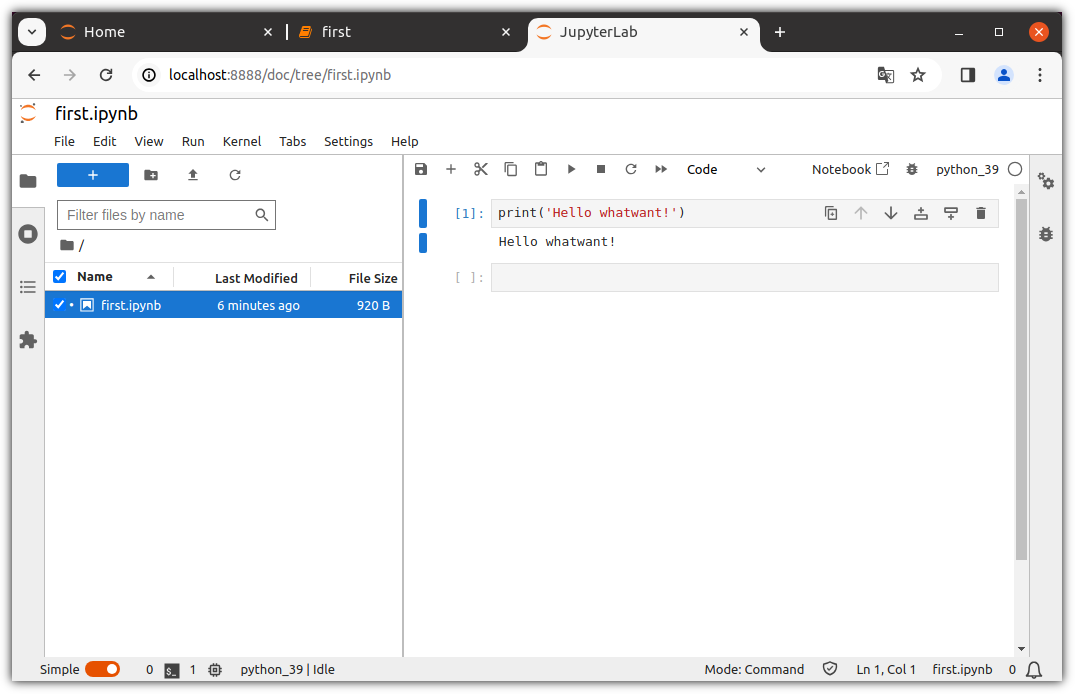
오른쪽 상단 즈음에 보이는 JupyterLab 버튼은 뭐지?

JupyrtLab


응?! 이건 Colab ???? ^^


즐거운 회사 생활 !!!

반응형

+ Recent posts