- Vagrant 사용을 위해서는 제일 먼저 작업을 실행할 Directory를 하나 만들어야 한다.
- Workspace 하나 만든다고 생각하면 될 것 같다.
> mkdir vagrant-hello
디렉터리: C:\Users\whatw\workspace
Mode LastWriteTime Length Name
---- ------------- ------ ----
d----- 2021-07-14 오후 2:00 vagrant-hello
> cd .\vagrant-hello\
02. init
- Workspace 안에서 init 작업을 하면 된다.
- `init` 뒤에는 사용할 이미지 주소를 적어주면 된다.
> vagrant init whatwant/Ubuntu-20.04-Server
==> vagrant: A new version of Vagrant is available: 2.2.17 (installed version: 2.2.16)!
==> vagrant: To upgrade visit: https://www.vagrantup.com/downloads.html
A `Vagrantfile` has been placed in this directory. You are now
ready to `vagrant up` your first virtual environment! Please read
the comments in the Vagrantfile as well as documentation on
`vagrantup.com` for more information on using Vagrant.
> dir
디렉터리: C:\Users\whatw\workspace\vagrant-hello
Mode LastWriteTime Length Name
---- ------------- ------ ----
-a---- 2021-07-14 오후 2:04 3104 Vagrantfile
03. check Vagrantfile
- `init`을 하면 `Vagrantfile`을 생성해준다.
- 첫 줄을 보면 알겠지만, ruby 포맷이다..... ㅠㅜ
# -*- mode: ruby -*-
# vi: set ft=ruby :
# All Vagrant configuration is done below. The "2" in Vagrant.configure
# configures the configuration version (we support older styles for
# backwards compatibility). Please don't change it unless you know what
# you're doing.
Vagrant.configure("2") do |config|
# The most common configuration options are documented and commented below.
# For a complete reference, please see the online documentation at
# https://docs.vagrantup.com.
# Every Vagrant development environment requires a box. You can search for
# boxes at https://vagrantcloud.com/search.
config.vm.box = "whatwant/Ubuntu-20.04-Server"
# Disable automatic box update checking. If you disable this, then
# boxes will only be checked for updates when the user runs
# `vagrant box outdated`. This is not recommended.
# config.vm.box_check_update = false
# Create a forwarded port mapping which allows access to a specific port
# within the machine from a port on the host machine. In the example below,
# accessing "localhost:8080" will access port 80 on the guest machine.
# NOTE: This will enable public access to the opened port
# config.vm.network "forwarded_port", guest: 80, host: 8080
# Create a forwarded port mapping which allows access to a specific port
# within the machine from a port on the host machine and only allow access
# via 127.0.0.1 to disable public access
# config.vm.network "forwarded_port", guest: 80, host: 8080, host_ip: "127.0.0.1"
# Create a private network, which allows host-only access to the machine
# using a specific IP.
# config.vm.network "private_network", ip: "192.168.33.10"
# Create a public network, which generally matched to bridged network.
# Bridged networks make the machine appear as another physical device on
# your network.
# config.vm.network "public_network"
# Share an additional folder to the guest VM. The first argument is
# the path on the host to the actual folder. The second argument is
# the path on the guest to mount the folder. And the optional third
# argument is a set of non-required options.
# config.vm.synced_folder "../data", "/vagrant_data"
# Provider-specific configuration so you can fine-tune various
# backing providers for Vagrant. These expose provider-specific options.
# Example for VirtualBox:
#
# config.vm.provider "virtualbox" do |vb|
# # Display the VirtualBox GUI when booting the machine
# vb.gui = true
#
# # Customize the amount of memory on the VM:
# vb.memory = "1024"
# end
#
# View the documentation for the provider you are using for more
# information on available options.
# Enable provisioning with a shell script. Additional provisioners such as
# Ansible, Chef, Docker, Puppet and Salt are also available. Please see the
# documentation for more information about their specific syntax and use.
# config.vm.provision "shell", inline: <<-SHELL
# apt-get update
# apt-get install -y apache2
# SHELL
end
04. check IP
- 이 부분은 필요하신 분들만 선택적으로 하면 된다.
- Why : 이 부분을 진행하는 이유는 다음과 같다.
. 집에서 공유기를 사용하고 있음
. VirtualBox에서 Ubuntu를 여러개를 실행할 계획인데,
. 서로 간의 통신을 구성하기 위해서 각 Ubuntu의 IP를 고정하고 싶음
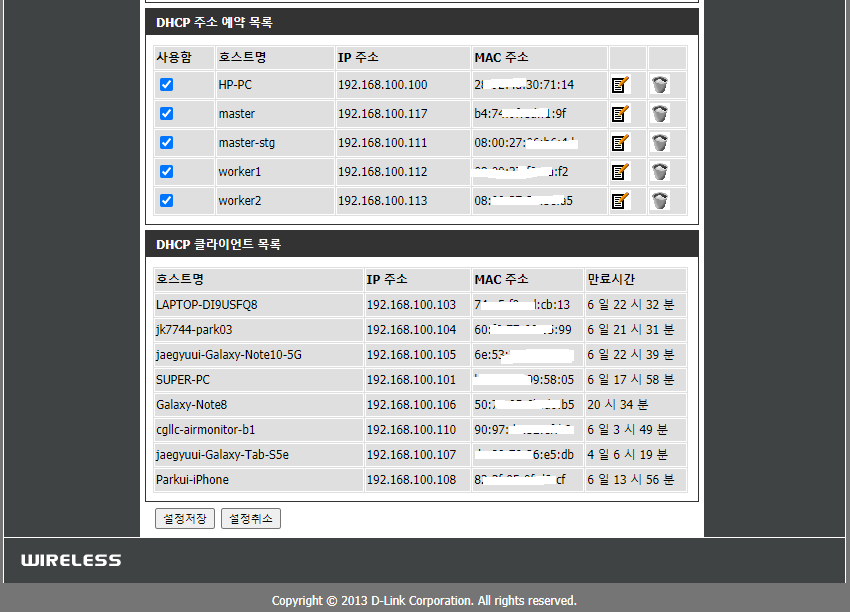
- 공유기에서 비어있는 IP를 확인해놓자
- 각자의 공유기에 따라 관리 페이지 들어가서 현재 할당되어 있는 IP 내역 확인하고,
- 나중에 MAC 주소에 따른 IP 할당 설정을 해보자.
05. edit Vagrant
- 리소스 포함해서 원하는 VM 모습으로 설정해보자
# -*- mode: ruby -*-
# vi: set ft=ruby :

Vagrant.configure("2") do |config|

  config.vm.box = "whatwant/Ubuntu-20.04-Server"
  config.vm.box_version = "0.1.0"

  config.vm.network "public_network", ip: "192.168.100.201"

  config.vm.provider "virtualbox" do |vb|
    vb.gui = false
    vb.cpus = "2"
    vb.memory = "2048"
  end

  config.vm.provision "shell", inline: <<-SHELL
    apt-get update
    apt-get upgrade -y
  SHELL

end
06. Vagrant Up
- 실행해보자 !!
> vagrant up

Bringing machine 'default' up with 'virtualbox' provider...
==> default: Importing base box 'whatwant/Ubuntu-20.04-Server'...
==> default: Matching MAC address for NAT networking...
==> default: Checking if box 'whatwant/Ubuntu-20.04-Server' version '0.1.0' is up to date...
==> default: Setting the name of the VM: vagrant-hello_default_1626272864694_38723
==> default: Clearing any previously set network interfaces...
==> default: Preparing network interfaces based on configuration...
    default: Adapter 1: nat
    default: Adapter 2: bridged
==> default: Forwarding ports...
    default: 22 (guest) => 2222 (host) (adapter 1)
==> default: Running 'pre-boot' VM customizations...
==> default: Booting VM...
==> default: Waiting for machine to boot. This may take a few minutes...
    default: SSH address: 127.0.0.1:2222
    default: SSH username: vagrant
    default: SSH auth method: private key
    default: Warning: Connection reset. Retrying...
    default: Warning: Connection aborted. Retrying...
    default:
    default: Vagrant insecure key detected. Vagrant will automatically replace
    default: this with a newly generated keypair for better security.
    default:
    default: Inserting generated public key within guest...
    default: Removing insecure key from the guest if it's present...
    default: Key inserted! Disconnecting and reconnecting using new SSH key...
==> default: Machine booted and ready!
==> default: Checking for guest additions in VM...
==> default: Configuring and enabling network interfaces...
==> default: Mounting shared folders...
    default: /vagrant => C:/Users/whatw/workspace/vagrant-hello
==> default: Running provisioner: shell...
    default: Running: inline script
    default: Hit:1 http://kr.archive.ubuntu.com/ubuntu focal InRelease
    default: Get:2 http://kr.archive.ubuntu.com/ubuntu focal-updates InRelease [114 kB]
    default: Get:3 http://kr.archive.ubuntu.com/ubuntu focal-backports InRelease [101 kB]
    default: Get:4 http://kr.archive.ubuntu.com/ubuntu focal-security InRelease [114 kB]
    default: Get:5 http://kr.archive.ubuntu.com/ubuntu focal-updates/main amd64 Packages [1,086 kB]
    default: Get:6 http://kr.archive.ubuntu.com/ubuntu focal-updates/main Translation-en [239 kB]
    default: Get:7 http://kr.archive.ubuntu.com/ubuntu focal-updates/main amd64 c-n-f Metadata [13.8 kB]
    default: Get:8 http://kr.archive.ubuntu.com/ubuntu focal-updates/universe amd64 Packages [841 kB]
    default: Get:9 http://kr.archive.ubuntu.com/ubuntu focal-updates/universe Translation-en [176 kB]
    default: Get:10 http://kr.archive.ubuntu.com/ubuntu focal-updates/universe amd64 c-n-f Metadata [18.3 kB]
    default: Get:11 http://kr.archive.ubuntu.com/ubuntu focal-backports/universe amd64 Packages [5,792 B]
    default: Get:12 http://kr.archive.ubuntu.com/ubuntu focal-backports/universe amd64 c-n-f Metadata [288 B]
    default: Get:13 http://kr.archive.ubuntu.com/ubuntu focal-security/main amd64 Packages [745 kB]
    default: Get:14 http://kr.archive.ubuntu.com/ubuntu focal-security/main Translation-en [148 kB]
    default: Get:15 http://kr.archive.ubuntu.com/ubuntu focal-security/main amd64 c-n-f Metadata [8,036 B]
    default: Get:16 http://kr.archive.ubuntu.com/ubuntu focal-security/universe amd64 Packages [629 kB]
    default: Get:17 http://kr.archive.ubuntu.com/ubuntu focal-security/universe Translation-en [96.2 kB]
    default: Get:18 http://kr.archive.ubuntu.com/ubuntu focal-security/universe amd64 c-n-f Metadata [11.6 kB]
    default: Fetched 4,346 kB in 13s (322 kB/s)
    default: Reading package lists...
    default: Reading package lists...
    default: Building dependency tree...
    default:
    default: Reading state information...
    default: Calculating upgrade...
    default: The following packages will be upgraded:
    default:   libuv1 linux-base
    default: 2 upgraded, 0 newly installed, 0 to remove and 0 not upgraded.
    default: 1 standard security update
    default: Need to get 98.5 kB of archives.
    default: After this operation, 0 B of additional disk space will be used.
    default: Get:1 http://kr.archive.ubuntu.com/ubuntu focal-updates/main amd64 libuv1 amd64 1.34.2-1ubuntu1.3 [80.8 kB]
    default: Get:2 http://kr.archive.ubuntu.com/ubuntu focal-updates/main amd64 linux-base all 4.5ubuntu3.6 [17.8 kB]
    default: dpkg-preconfigure: unable to re-open stdin: No such file or directory
    default: Fetched 98.5 kB in 1s (73.4 kB/s)
    default: (Reading database ...
(Reading database ... 45%abase ... 5%
(Reading database ... 55%abase ... 50%
    default: (Reading database ... 60%
    default: (Reading database ... 65%
    default: (Reading database ... 70%
    default: (Reading database ... 75%
    default: (Reading database ... 80%
    default: (Reading database ... 85%
    default: (Reading database ... 90%
    default: (Reading database ... 95%
(Reading database ... 145156 files and directories currently installed.)
    default: Preparing to unpack .../libuv1_1.34.2-1ubuntu1.3_amd64.deb ...
    default: Unpacking libuv1:amd64 (1.34.2-1ubuntu1.3) over (1.34.2-1ubuntu1.1) ...
    default: Preparing to unpack .../linux-base_4.5ubuntu3.6_all.deb ...
    default: Unpacking linux-base (4.5ubuntu3.6) over (4.5ubuntu3.5) ...
    default: Setting up linux-base (4.5ubuntu3.6) ...
    default: Setting up libuv1:amd64 (1.34.2-1ubuntu1.3) ...
    default: Processing triggers for man-db (2.9.1-1) ...
    default: Processing triggers for libc-bin (2.31-0ubuntu9.2) ...
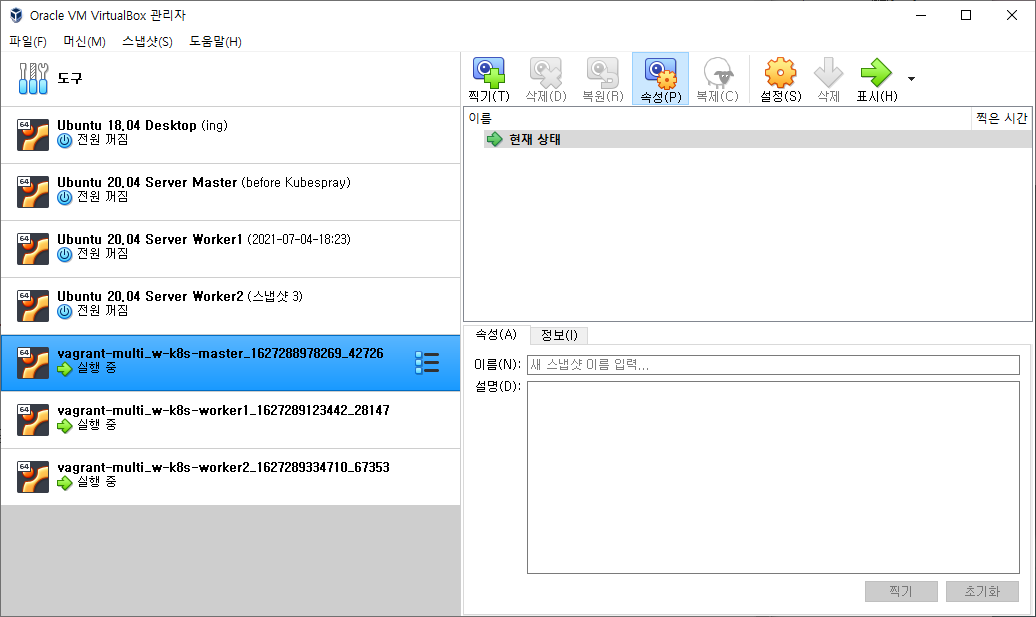
- `Vagrantfile`에서 `vb.gui = false` 설정을 했기에, `VirtualBox`가 별도 실행되지 않는다.
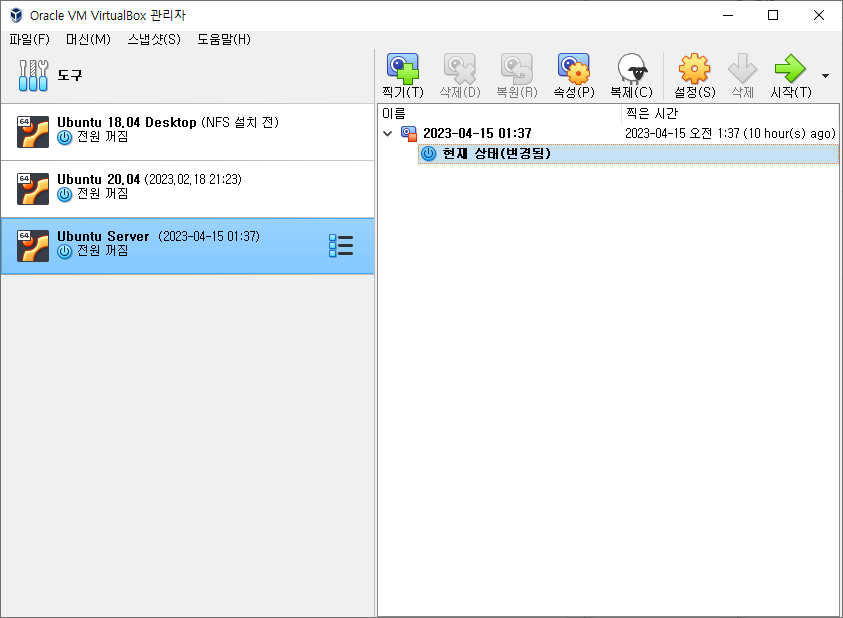
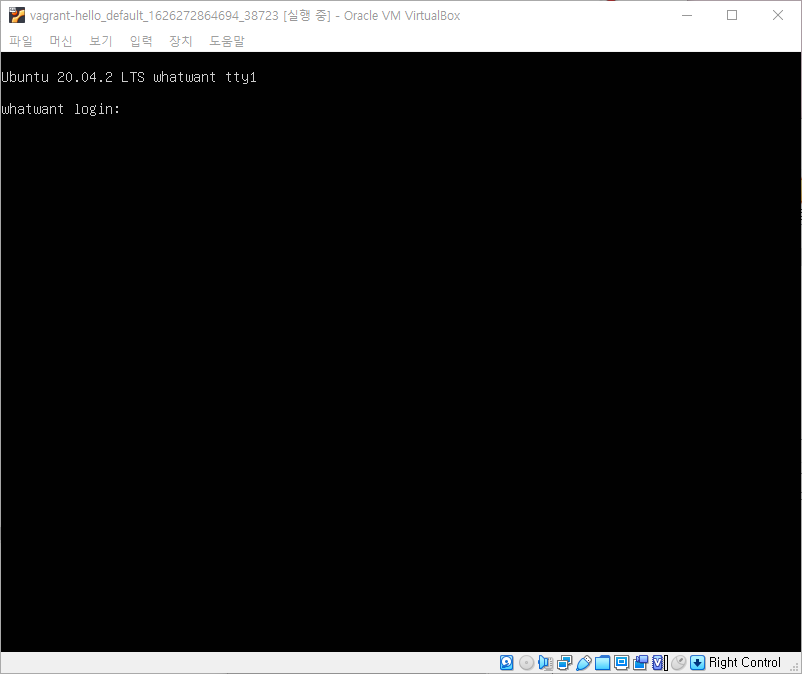
- 직접 `VirtualBox`를 실행해보면 다음과 같이 새로 머신이 하나 추가된 것을 볼 수 있다.
- 머신 이름은 새로 생성한 Workspace(Directory) 이름 + 별칭 + 랜덤 숫자 ...
- 머신을 더블 클릭하면 실행된 머신이 나타난다
- 로그인 ID / Password는 모두 `vagrant`
07. status
- 현재 `Vagrant`의 상태를 확인해보자.
- 사용할 수 있는 명령어도 친절히 알려준다.
> vagrant status

Current machine states:

default                   running (virtualbox)

The VM is running. To stop this VM, you can run `vagrant halt` to
shut it down forcefully, or you can run `vagrant suspend` to simply
suspend the virtual machine. In either case, to restart it again,
simply run `vagrant up`.
- 이제 준비된 VirtualBox Image를 Vagrant Image로 convert 해보자.
- VirtualBox Guest 파일들이 저장된 위치를 찾아서 이동
> dir
total 14473272
drwxr-xr-x 1 whatw 197609           0  7월  4 18:30  Logs/
drwxr-xr-x 1 whatw 197609           0  7월  4 18:23  Snapshots/
-rw-r--r-- 1 whatw 197609       20613  7월  4 18:30 'Ubuntu 20.04 Server Worker1.vbox'
-rw-r--r-- 1 whatw 197609       20642  7월  4 18:23 'Ubuntu 20.04 Server Worker1.vbox-prev'
-rw-r--r-- 1 whatw 197609 14820573184  5월  5 16:49 'Ubuntu Server 20.vdi'
- `package` 명령어를 이용해서 convert 하면 된다.
- 아래 타이핑한 내역을 잘 살펴보기 바란다 (.vbox 사용하지 않기와 같은...^^)
> vagrant package --base "Ubuntu 20.04 Server Worker1" --out "ubuntu2004server.box"
==> Ubuntu 20.04 Server Worker1: Attempting graceful shutdown of VM...
    Ubuntu 20.04 Server Worker1: Guest communication could not be established! This is usually because
    Ubuntu 20.04 Server Worker1: SSH is not running, the authentication information was changed,
    Ubuntu 20.04 Server Worker1: or some other networking issue. Vagrant will force halt, if
    Ubuntu 20.04 Server Worker1: capable.
==> Ubuntu 20.04 Server Worker1: Forcing shutdown of VM...
==> Ubuntu 20.04 Server Worker1: Exporting VM...
==> Ubuntu 20.04 Server Worker1: Compressing package to: C:/Users/whatw/VirtualBox VMs/Ubuntu 20.04 Server Worker1/ubuntu2004server.box
06. add Box
- 위에서 만든 Box를 등록하는 과정이다
> vagrant box add "ubuntu2004server" "C:\Users\whatw\ubuntu2004server.box"

==> box: Box file was not detected as metadata. Adding it directly...
==> box: Adding box 'ubuntu2004server' (v0) for provider:
    box: Unpacking necessary files from: file:///C:/Users/whatw/ubuntu2004server.box
    box:
==> box: Successfully added box 'ubuntu2004server' (v0) for 'virtualbox'!
07. SHASUM
- 뒤에 사용될 것을 미리 확인해놓자
- 파일 이름 뒤의 `SHA256`을 꼭 써줘야 한다!!!
> certutil -hashfile .\ubuntu2004server.box sha256

SHA1의 .\ubuntu2004server.box 해시:
7e6b73addaaea6c430c54dc16fd968ba740c7272e68807e0cf57f6fa5e28c499
CertUtil: -hashfile 명령이 성공적으로 완료되었습니다.
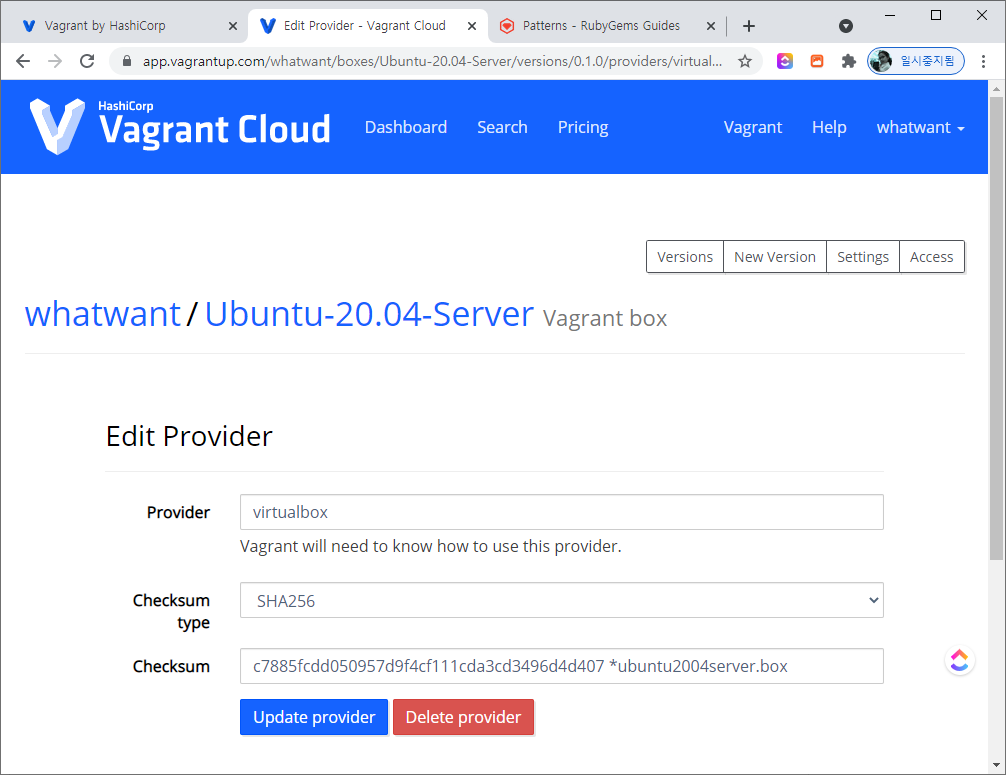
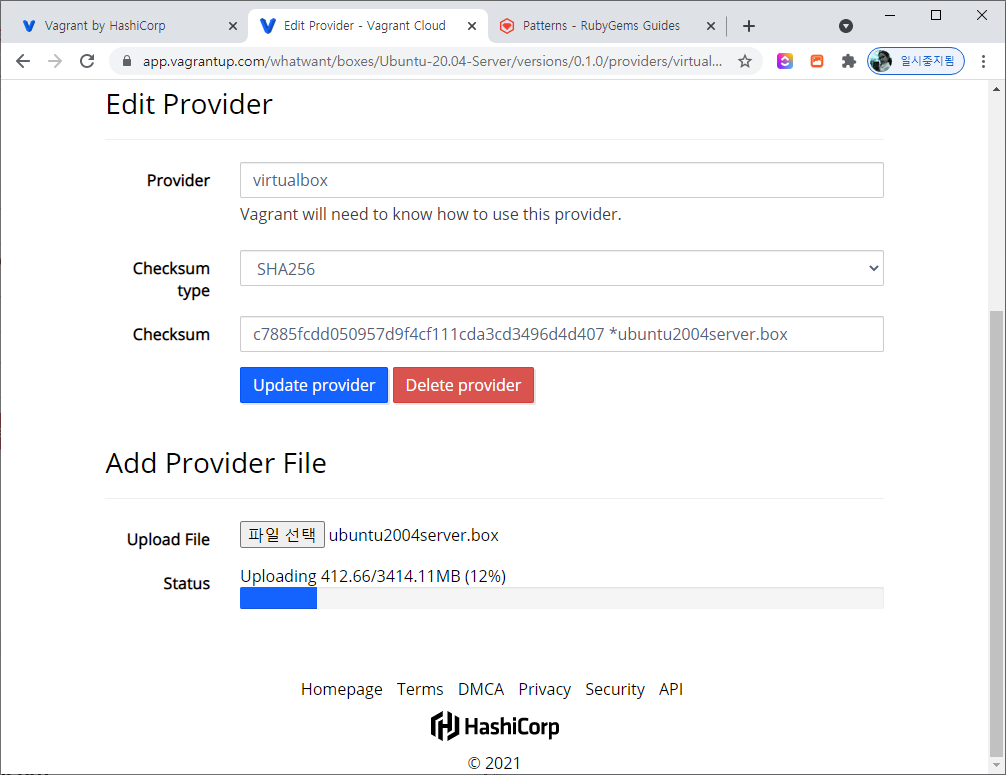
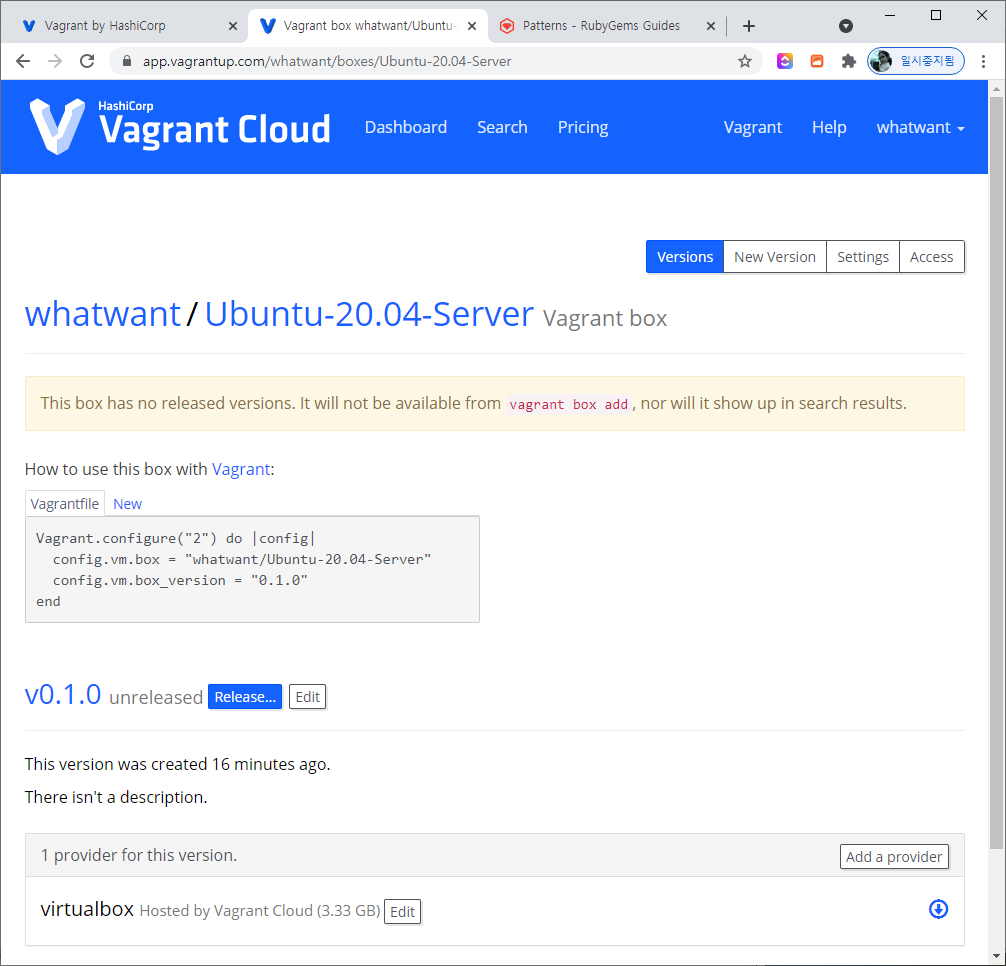
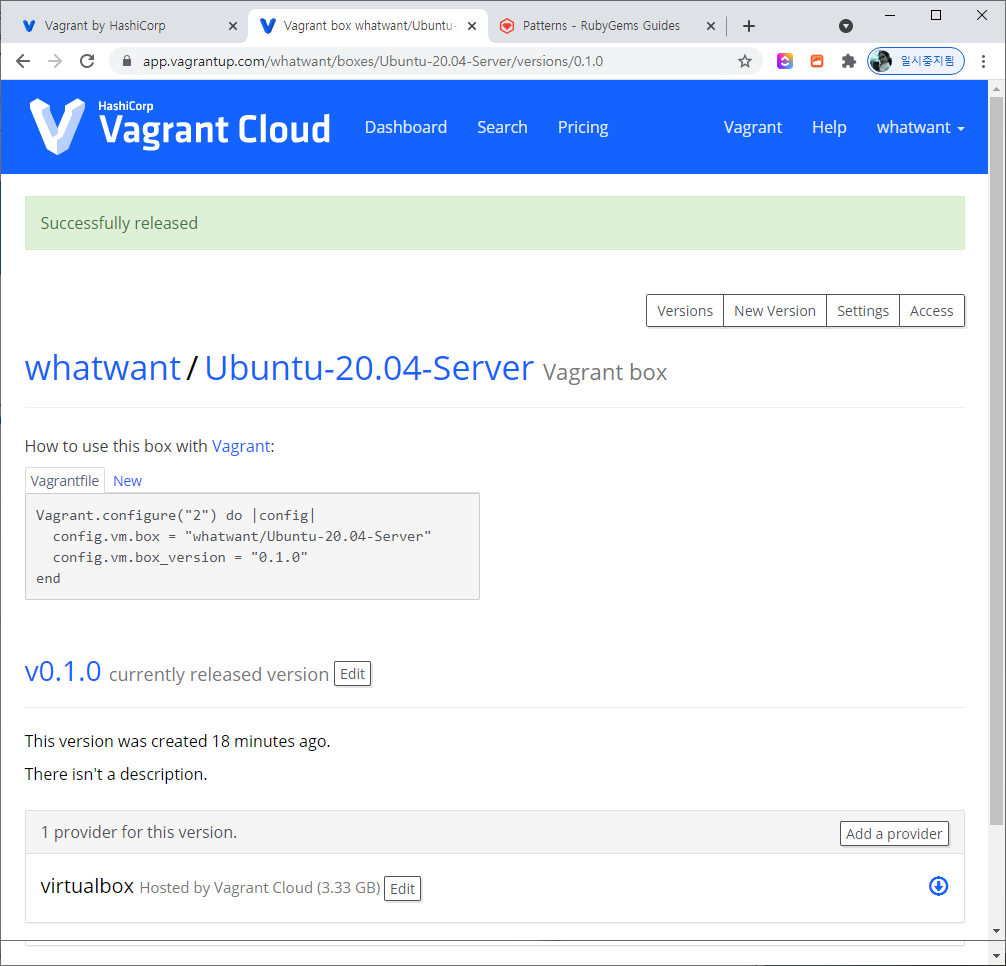
08. Vagrant Cloud 준비
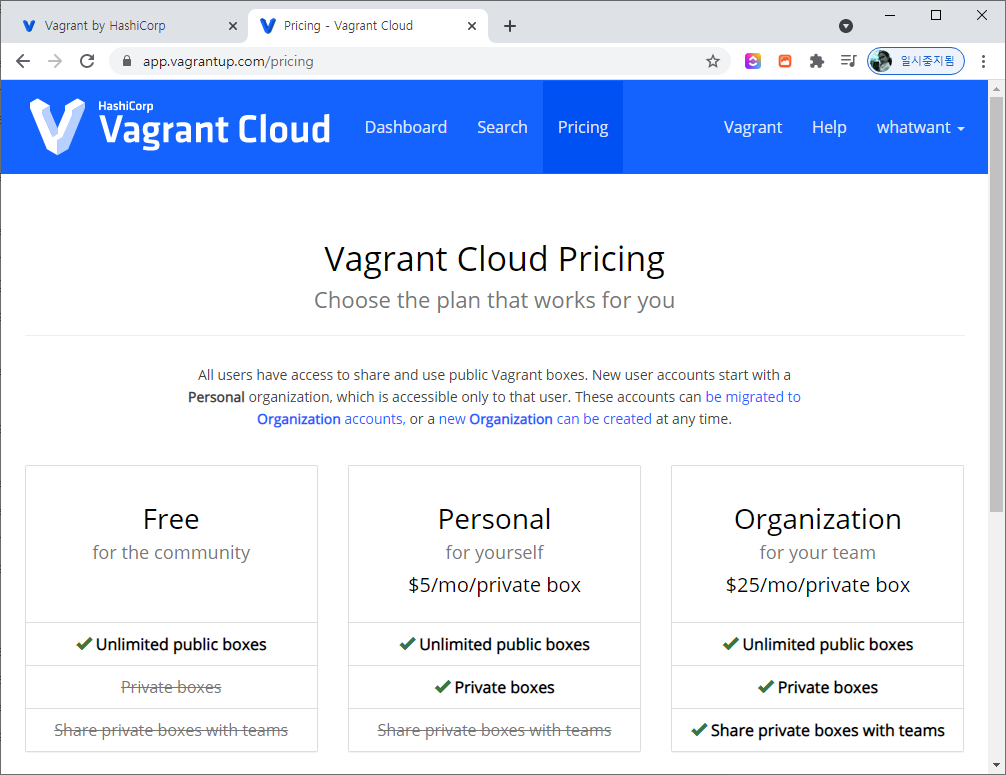
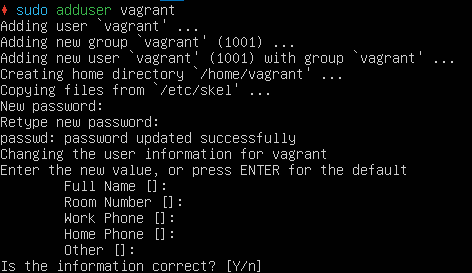
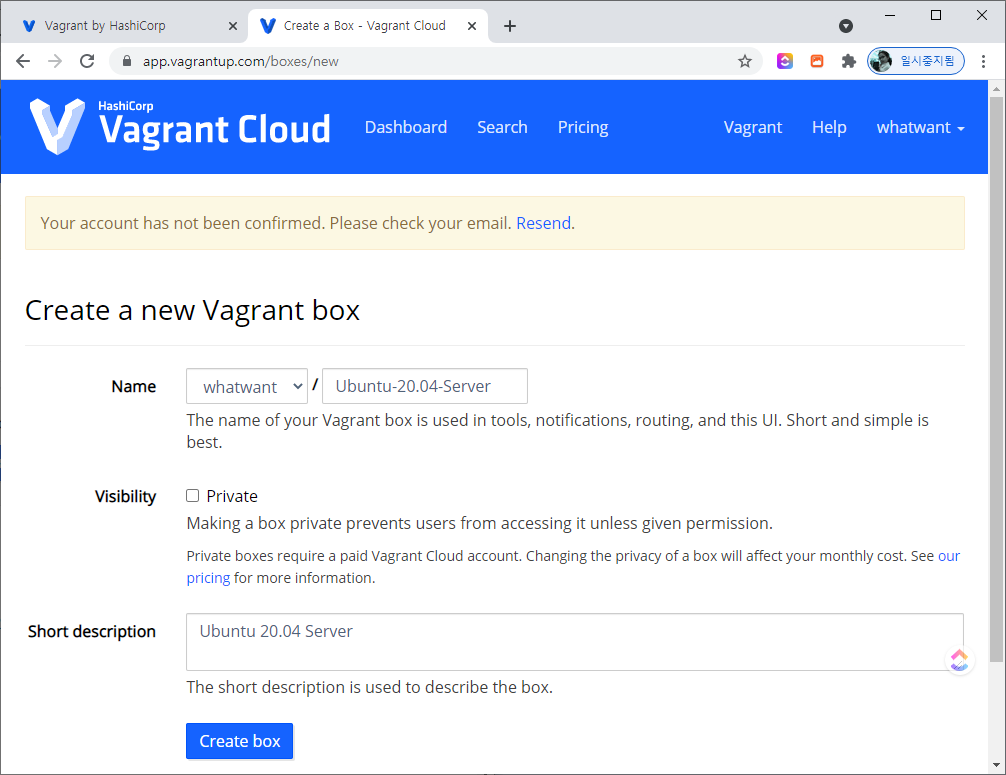
- `03. Vagrant Hub ?`에서 회원가입을 했다면 아래와 같은 화면을 확인할 수 있다.
- `Create a new Vagrant Box` 클릭하고 계속 진행해보자.
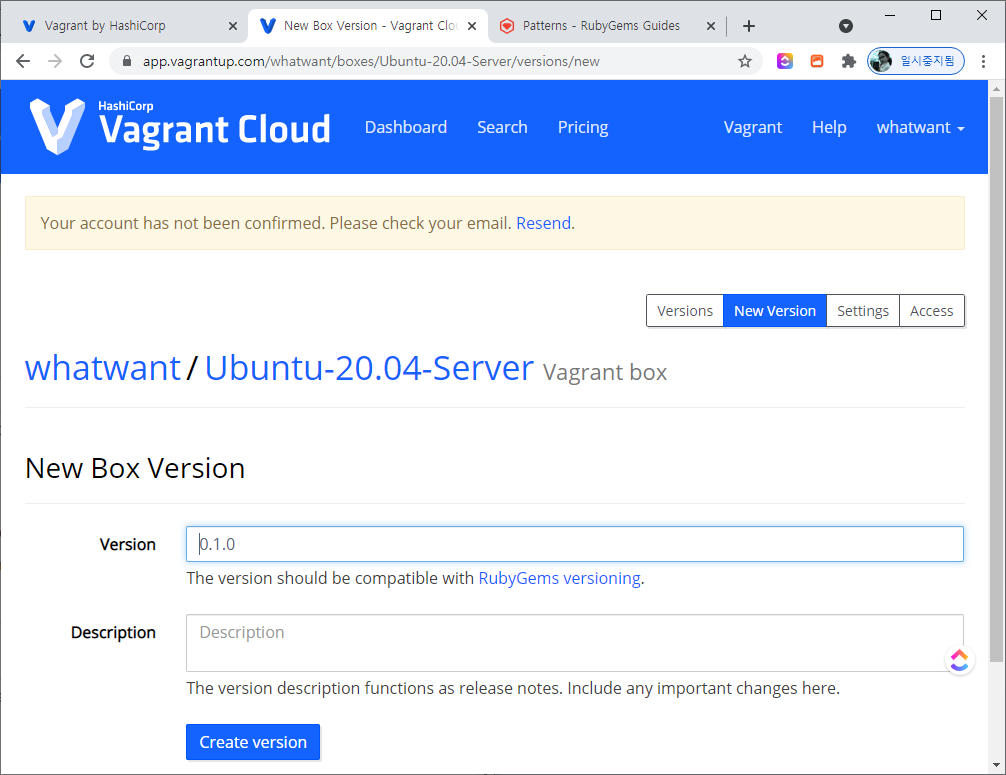
- 버전은... 링크로 있는 `RubyGems versioning`을 한 번 확인해보기 바란다.
- 제대로 사용하도록 하려면 사실 `1.0.0`으로 해주는 것이...
- 앞에서 미리 확인한 SHA Checksum 값을 넣어주면 된다. (위의 이미지에 있는 Checksum 값은 틀렸다 ^^)
정신없는 업무로 한동안 집에서 컴퓨터를 만지지 못하다가,
간만에 집에서 뭔가 해보려 VirtualBox를 실행했는데... 새로운 버전이 나왔단다.
VirtualBox 4.3.6 (released 2013-12-18)
This is a maintenance release. The following items were fixed and/or added:
VMM: fixed a Guru Meditation VINF_EM_TRIPLE_FAULT caused by VMCB caching with nested paging on certain AMD CPUs (bug #12451) VMM: fixed a Guru Meditation VERR_VMX_UNEXPECTED_INTERRUPTION_EXIT_TYPE while intercepting debug exceptions (VT-x only; bug #12410) VMM: fixed a Guru Meditation VERR_SVM_UNEXPECTED_EXIT while intercepting debug register accesses (AMD-V only; bug #12481) VMM: fixed a VERR_SSM_STRUCTURE_MAGIC error when trying to load a saved state made with VBox 4.3.4 when VT-x/AMD-V is disabled. Unfortunately, VBox 4.3.4 produced broken saved states for this configuration so you have to discard these states (bug #12414) VMM: added a few more MSRs to the whitelist required by certain guests (bug #12245) GUI: fixed deleting of inaccessible VMs (4.3 regression, bug #12205) GUI: fixed warnings in VM settings / number of guest processors (bug #12480) Main: don't automatically enable 64-bit guests on 64-bit hosts if VT-x/AMD-V is not available (bug #12424) Main: always expose the DMI memory information to Windows 2012 guests (bug #12017) Main: fixed occasional crashes on guest display resolution change (bug #7063) Main: fixed reporting back temporary name when calling IGuestSession::DirectoryCreateTemp() (bug #12498) API: fix for a hang when launching a GUI VM through the API, which crashes due to GUI unavailability Storage: fix for BLKCACHE_IOERR runtime errors under rare circumstances (bug #11030) Network: allow to start more than 5 PCNet instances (bug #12426) E1000: if the cable was disconnected before the guest initialized the device, the link status was not properly set to 'down' after the initialization completed despite the fact that there was no connection 3D support: fixed offset of guest 3D image elements (Mac OS X Retina hosts only; bug #11021) Solaris hosts: fixed accessing the host driver from non-global zones (4.3 regression, bug #12271)
뭔가 어려운 내용들이 개선이 된 것 같은데, 피부에 와닿는 부분은 잘 모르겠다 ^^
그냥 계속 되는 개선이 고마울 뿐....